
Anilab for Smart TV
Want to use Anilab on a bigger screen? This guide explains how Anilab may work with different Smart TV platforms, including Android TV, Google TV, Fire TV, Samsung TV, LG TV, and Roku TV.
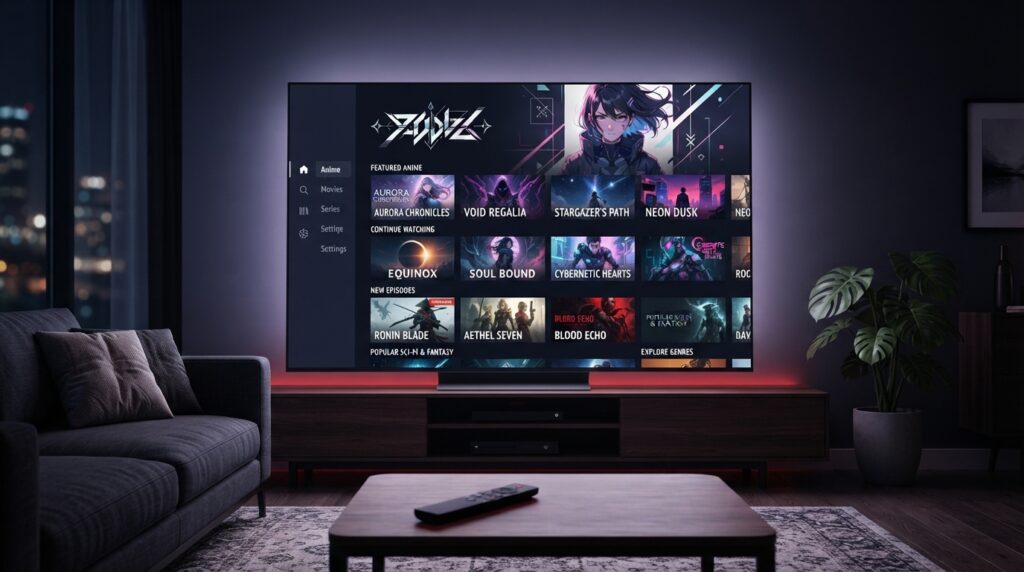
Is Anilab Compatible With Your Smart TV?
Smart TVs use different operating systems, so the same APK installation method does not work on every television. Check your TV platform below before trying to install Anilab.
Compatibility Table
| TV Type | APK Installation |
| Android TV | Compatible devices may support APK installation |
| Google TV | Compatible devices may support APK installation |
| Fire TV | Follow the Firestick Guide |
| Samsung TV | Check compatibility with the TV’s operating system |
| LG TV | Check compatibility with the TV’s operating system |
| Roku TV | Standard Android APK installation is not supported |
Anilab on Android Smart TV
Android TV devices provide a more direct way to use Android-based APK files when the device supports installation from outside the Play Store. If you have a compatible Android TV or Google TV device, follow our step-by-step installation guide.
Anilab on Fire TV
Fire TV devices use their own Fire OS environment, so the installation process is different from a standard Android TV setup. If you are using a compatible Fire TV Stick, follow the dedicated Firestick installation guide.
Samsung & LG Smart TVs
Samsung and LG Smart TVs use operating systems that differ from Android TV. Because of this, a standard Android APK may not install directly on these televisions.
If your TV does not support Android APK installation, check whether you have a compatible Android TV or Google TV device that can be connected to your television.
Other Ways to Use Anilab on a TV
If your Smart TV does not support Android APK installation, you may be able to use a compatible Android TV device or streaming device connected to your television.
Check the device requirements before installing any APK and use the guide that matches your setup.
Before Installing Anilab on Smart TV
📺 Check Your TV OS
Find out which operating system your Smart TV uses.
📦 Check APK Support
Confirm whether your device supports Android APK installation.
🌐 Check Your Connection
Make sure your TV or streaming device has a stable internet connection.
Smart TV Troubleshooting
Frequently Asked Questions
Check your TV platform and follow the guide that matches your device.