
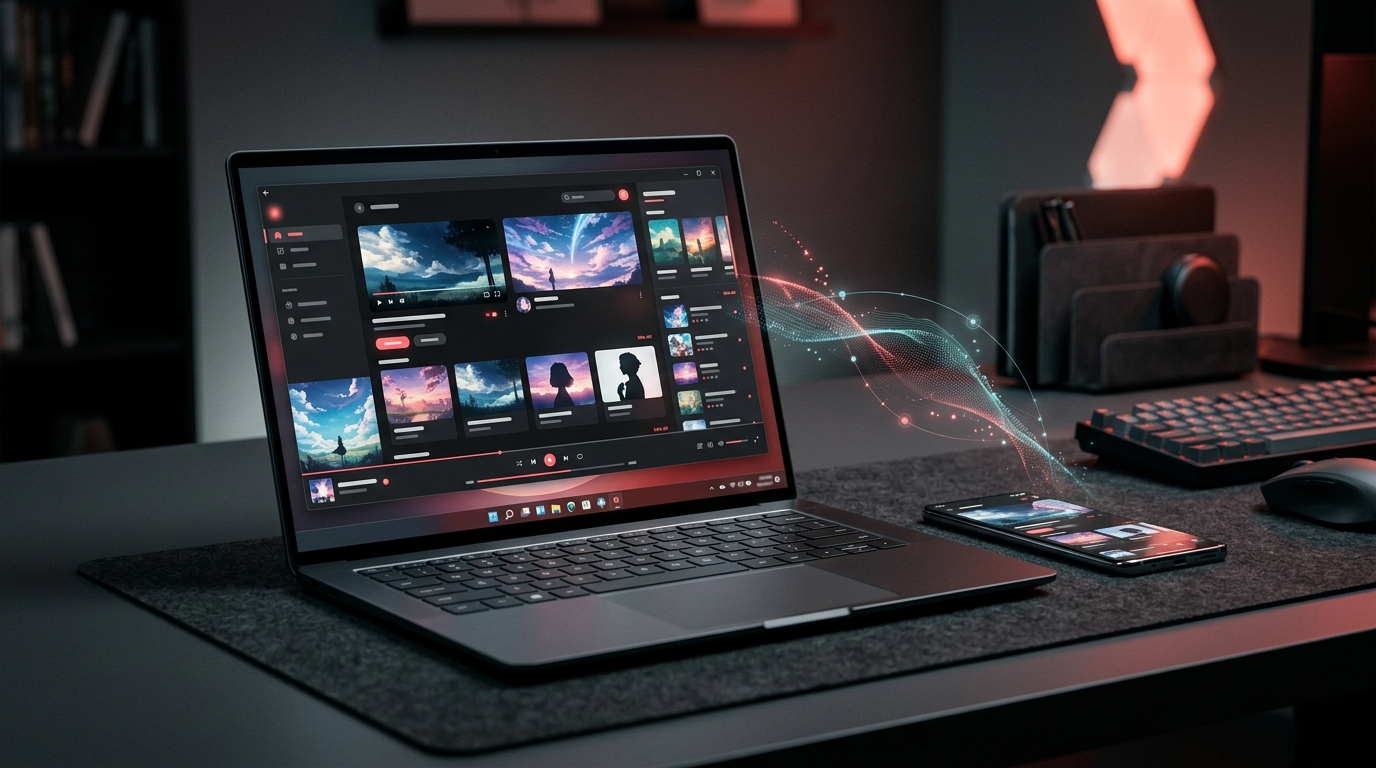
How to Use Anilab on PC
Want to use Anilab on a Windows PC instead of your phone? An Android emulator makes it possible to run Android apps on a desktop or laptop. With the right setup, you can install the Anilab APK inside an emulator and use the app with a larger screen, keyboard, and mouse.
This guide explains how to use Anilab on PC, from choosing an Android emulator to installing the APK and fixing common problems.
Can You Use Anilab on a PC?
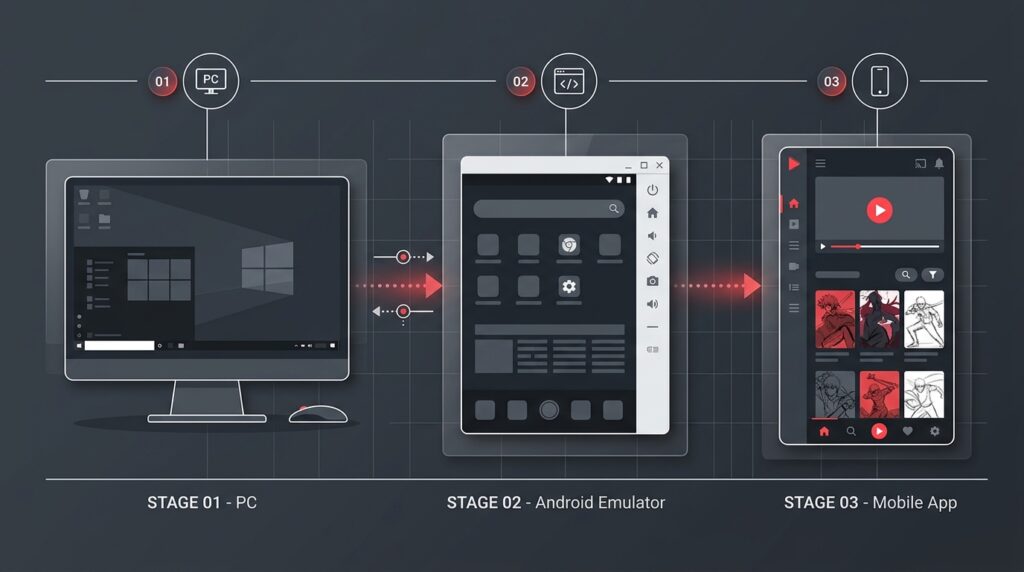
Anilab is designed for Android devices, so Windows does not normally install the APK directly. To use Anilab on a Windows PC, you need an Android emulator that creates an Android environment on your computer.
The basic process is:
Windows PC → Android Emulator → Anilab APK → Anilab App
Once the emulator is ready, you can install the APK and open Anilab from the emulator’s app menu.
What You Need Before Installing Anilab on PC
Before starting, make sure your computer is ready for an Android emulator.
You should have:
- A Windows PC or laptop
- A stable internet connection
- Enough free storage
- An Android emulator
- The Anilab APK file from a source you trust
It is also a good idea to keep Windows and your emulator updated for better compatibility and performance.
How to Use Anilab on PC Step by Step
1. Choose an Android Emulator
First, install an Android emulator that works with your Windows PC. Popular options include BlueStacks and LDPlayer.
Choose an emulator that matches your computer’s available RAM, processor, and storage. If your PC has limited resources, using lighter emulator settings can help improve performance.
2. Install the Emulator on Windows
Download the emulator from its official website and install it on your computer.
Follow the installation instructions shown on the screen. After installation, open the emulator and complete its initial Android setup.
3. Get the Anilab APK
Next, you need the Anilab APK file.
Only use an APK file from a source you trust. Avoid modified APKs or suspicious download pages because unknown files can create security and privacy risks.
Keep the APK somewhere easy to find, such as your Windows Downloads folder.
4. Install Anilab APK in the Emulator
Open your Android emulator and locate its APK installation option.
Depending on the emulator, you may be able to:
- Drag the APK file into the emulator window
- Use an Install APK option
- Select the APK from your computer
Choose the Anilab APK and allow the emulator to complete the installation.
5. Open Anilab on Your PC
After the installation finishes, look for the Anilab icon inside the emulator.
Click the icon to launch the app. You can then use your mouse and keyboard to navigate the Android interface on your PC.
If Anilab does not appear immediately, check the emulator’s app drawer or restart the emulator.
How to Get Better Performance on PC
An Android emulator can use a noticeable amount of your computer’s resources. If Anilab feels slow, try these simple adjustments:
- Close unnecessary Windows programs.
- Make sure your PC has enough free storage.
- Update the emulator to its latest available version.
- Reduce emulator resolution if your PC struggles with performance.
- Avoid running several demanding applications at the same time.
- Restart the emulator if it becomes unresponsive.
Performance can vary depending on your processor, RAM, graphics hardware, emulator settings, and Windows version.
Can You Use Anilab on Windows 11?
Yes, an Android emulator can provide an Android environment on Windows 11, allowing compatible Android applications to run on a PC.
However, compatibility may vary between different emulator versions and APK builds. If an APK does not install correctly, check whether your emulator supports the Android version required by the app.
Common Anilab on PC Problems
Anilab APK Won’t Install
If the APK does not install, first make sure the file is complete and compatible with your emulator.
You can also restart the emulator and try the installation again. If the problem continues, check whether the emulator supports the APK’s Android requirements.
Anilab Is Running Slowly
Slow performance is often related to emulator settings or limited PC resources.
Close background applications and reduce the emulator’s graphics or resolution settings. Giving the emulator appropriate CPU and RAM resources may also help.
Anilab Is Not Opening
If Anilab installs but does not open, restart the emulator and try again.
You should also check whether your emulator is updated and whether the APK is compatible with the Android environment being used.
Video Is Buffering or Not Playing
Video playback can depend on your internet connection, emulator performance, and the app’s current compatibility.
First, check your internet connection and restart the emulator. If the problem remains, try updating the emulator or checking the app version.
Why Use Anilab on PC?
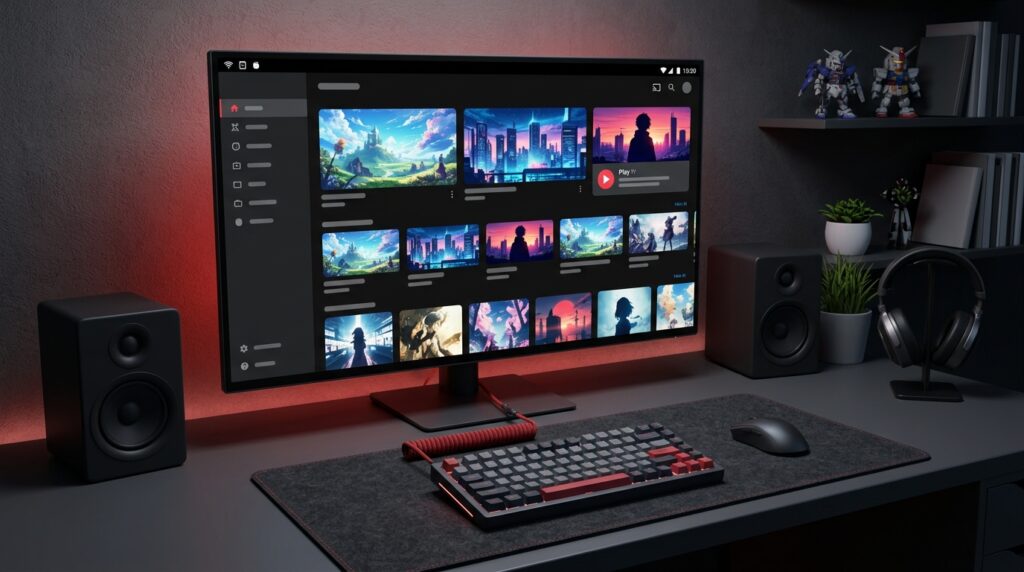
Using an Android app on a PC can be useful when you prefer a larger display or desktop setup.
Some possible advantages include:
- Larger Screen: Watch and browse on a bigger display.
- Mouse & Keyboard: Navigate more comfortably with PC controls.
- Desktop Setup: Keep your anime browsing separate from your phone.
- Easy Multitasking: Switch between the emulator and other Windows applications.
- Flexible Viewing: Use your existing monitor or laptop screen.
Frequently Asked Questions
Final Thoughts
Using Anilab on a PC is possible through an Android emulator. The setup is straightforward: install a compatible emulator, prepare the Anilab APK, install it inside the emulator, and then launch the app from your Windows desktop environment.
If you are having trouble, check your emulator compatibility, PC resources, internet connection, and APK source before trying the installation again.