
How to Install Anilab APK on Android

Installing an APK on Android is different from installing an app through Google Play. If you have an Anilab APK file from a source you trust, you can install it manually by following a few simple steps.
This guide explains how to download the APK, allow the required Android permission, complete the installation, and fix some common problems.
Note: APK files should only be installed from a source you trust. Check the file and source before installing, and review any Android security warnings.
What You Need Before Installing Anilab APK
Before starting the installation, make sure your Android device is ready.
You should have:
- An Android phone or tablet
- A stable internet connection
- Enough free storage
- The correct APK file
- Permission to install apps from the source you are using
It is also a good idea to check your Android version and make sure the APK is compatible with your device.
Download the Anilab APK
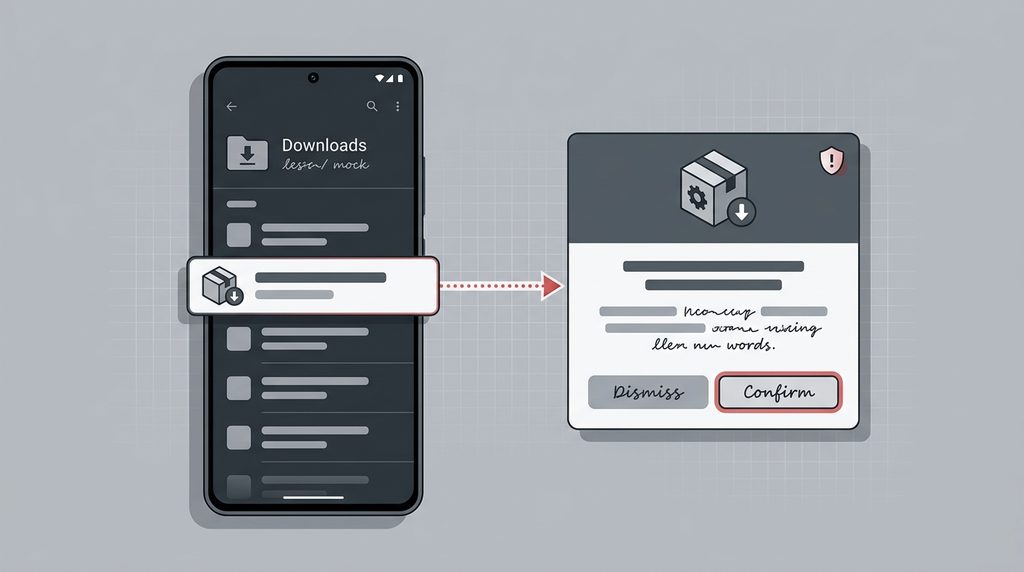
First, get the Anilab APK file from your chosen source.
Before downloading, check the file name and make sure you are getting the intended APK version. Avoid downloading APK files from unknown pop-ups, suspicious advertisements, or untrusted websites.
Need the download page?
You can visit our Anilab Download Guide for more information.
Open the Downloaded APK File
Once the APK has finished downloading, open your device’s Downloads folder or tap the download notification.
Find the Anilab APK file and tap it to start the installation process.
Android may display a security message before allowing the installation.
Allow Installation From This Source
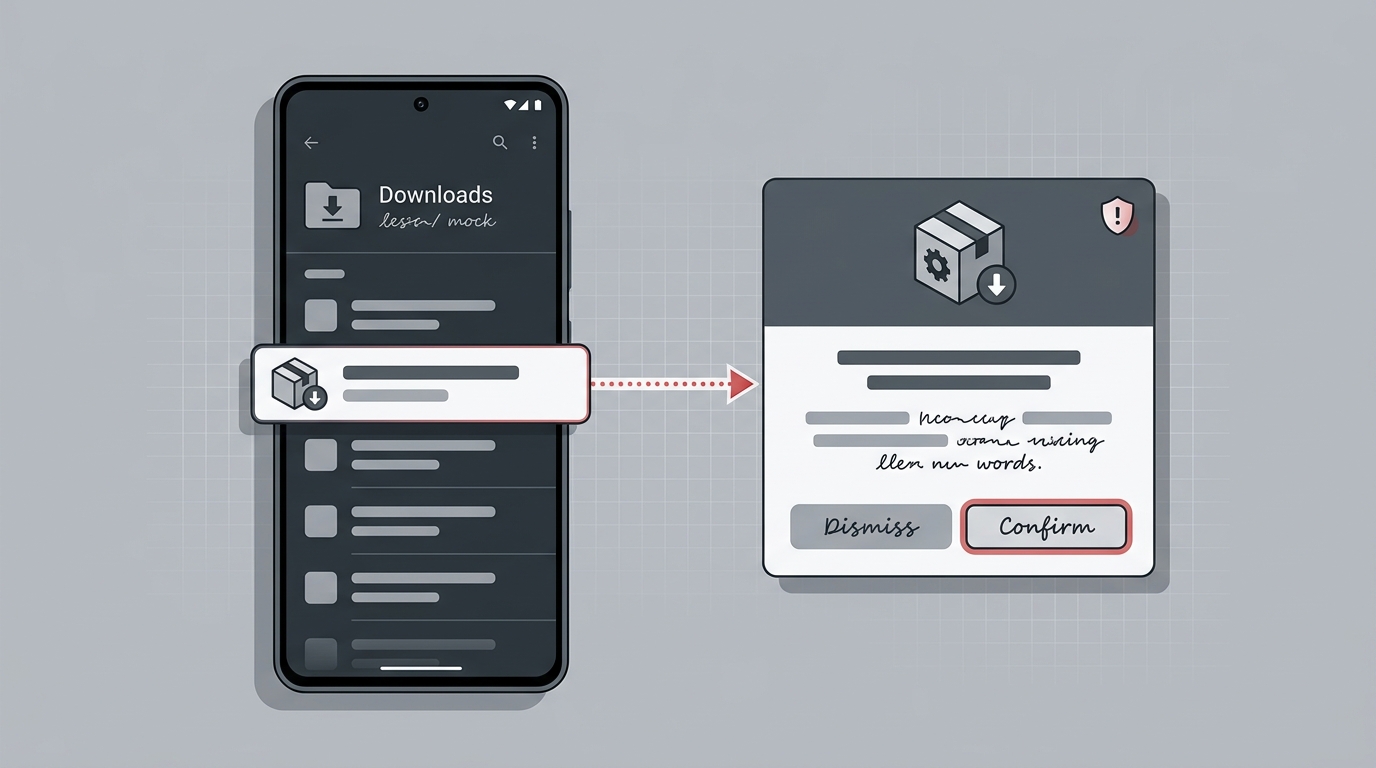
If Android displays a message such as “For your security, your phone currently isn’t allowed to install unknown apps from this source,” you may need to allow the app or browser you used to download the APK.
The exact menu can vary between Android versions and manufacturers.
Generally, you can go to:
Settings → Apps → Special app access → Install unknown apps
Then select the browser or file manager you used and enable the option to allow installations from that source.
Only enable this permission for a source you trust. You can disable it again after installation.
Install the APK
Return to the downloaded APK file and tap it again.
Review the installation screen and select Install if everything looks correct.
Wait while Android completes the installation.
The process may take a few moments depending on your device.
Open Anilab
After the installation is complete, you should see an option to Open the app.
Tap Open to launch Anilab.
You can also find the app later from your Android app drawer.
If the app requests permissions, review them carefully and only allow permissions that you are comfortable granting.
What If Anilab APK Does Not Install?
Sometimes an APK may fail to install because of compatibility, storage, or file-related problems.
Try these basic checks:
Check Your Android Version
The APK may not be compatible with your particular Android version. Check your device information and the requirements of the APK version you are using.
Check Free Storage
Make sure your phone has enough free storage for the installation.
Download the File Again
If the APK download was incomplete or corrupted, remove it and download the file again from the source you trust.
Check Existing App Versions
If another version of the app is already installed, an update or replacement may not work as expected. Check the existing installation before trying again.
Review Android Security Messages
Do not ignore security warnings. If Android identifies a potential problem with the APK, stop and verify the source and file before continuing.
Can I Install Anilab APK on an Android Tablet?
Yes, APK installation generally works similarly on compatible Android tablets.
The main things to check are:
- Android version
- Available storage
- APK compatibility
- Installation permissions
The exact settings can vary depending on the tablet manufacturer and Android version.
Is Installing an APK Safe?
There is no universal guarantee that every APK file is safe.
Safety depends on factors such as the source of the file, its authenticity, permissions, and compatibility.
Before installing an APK:
- Use a source you trust
- Check the file carefully
- Review Android warnings
- Check requested permissions
- Avoid suspicious or modified files
Never assume an APK is safe simply because its name looks correct.
Final Thoughts
Installing an Anilab APK on Android can be straightforward when the APK is compatible and comes from a source you trust.
The general process is to download the APK, review Android’s security settings, install the file, and then open the app.
If you experience problems during installation, check your Android version, available storage, APK file, and security settings before trying again.
For more device-specific information, explore our other Anilab guides for PC, Android TV, Firestick, and iPhone/iPad.